








What Move It does
Moving an issue from one Jira project to another should be a one-click operation. With native Jira, it’s a tedious step-through wizard: pick the issue type in the new project, pick the new status, remap each component and fix version, then repeat the whole thing the next time someone needs to do the same move.
Move It captures those choices as Issue Mover Rules. Define a rule once for each project pair (or for within-project field updates), and from then on the move is a single click — or runs automatically when issues match a condition.
Move It works on Jira Cloud and is a fully Forge-native app: nothing leaves your Atlassian Cloud site.
Key features
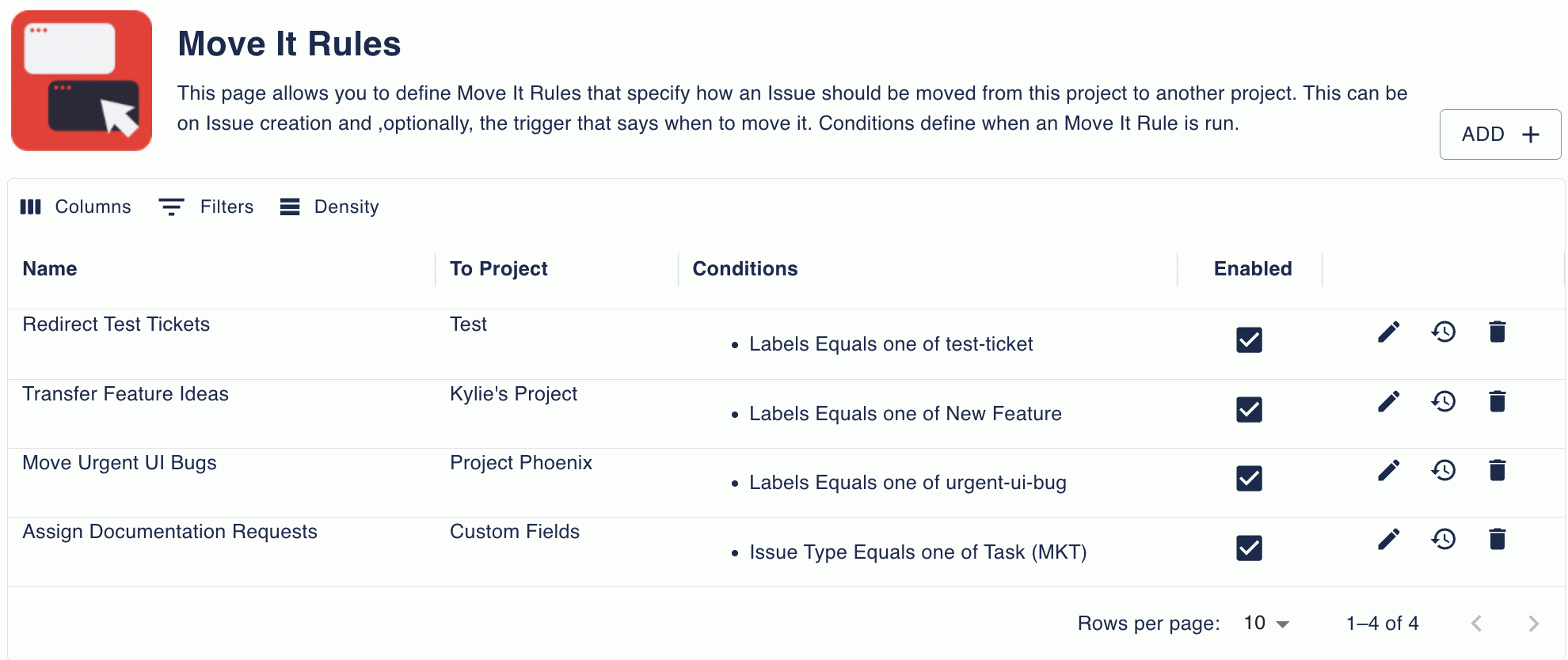
- Issue Mover Rules. Define one rule per “I move issues from this project with these mappings” workflow. Each rule belongs to its source project and specifies the target project plus how each field should be mapped on the way across.
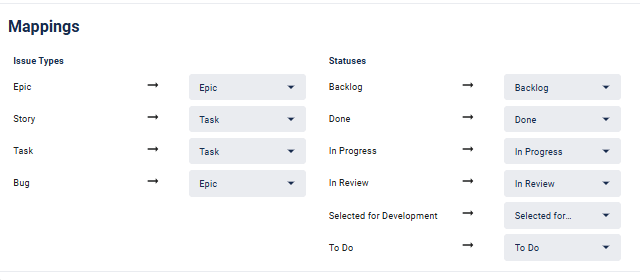
- Field, status, component, and fix-version mapping. Each rule defines how to map issue types, statuses, components, and fix versions between source and target. If a status exists in both projects, Jira keeps it (field disabled). If not, you choose the destination status once and the rule remembers.
- Manual + automatic moves. Apply a rule by hand from any matching issue, or set the rule to Run automatically with conditions (“Assignee equals X”, “Component equals Y”, etc.). When an issue matches every condition the move runs without user interaction.
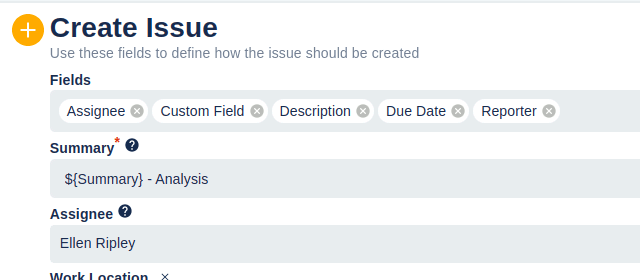
- Within-project field updates too. A rule can target the same project as the source, in which case it acts as a field-update rule. Useful for “anything reported with priority Critical should automatically be moved to the Triage component”.
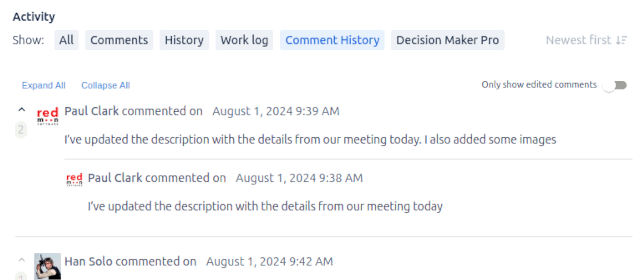
- Provenance comment. Optionally add a comment to the moved issue noting it has been moved and recording the original issue key, so the history is preserved on the new issue.
- Move history per rule. Every rule has a history page showing each time it ran, the source and target issues, and any errors that occurred during the move.
- Multiple rules per project. A project can have any number of rules — the first matching rule fires. Use this to fan a single project’s issues out to multiple target projects based on field values.
What teams use Move It for
- Triage → Engineering routing. New bugs arrive in a central Triage project. A Move It rule with
Issue Type = Bug AND Component = Backendautomatically moves them to the Backend project; another rule routes Frontend bugs to the Frontend project. - Customer support → Engineering handoff. A JSM customer ticket gets escalated by setting
Escalated = Yes; Move It picks it up and moves a copy into the engineering project with all customer context preserved. - Cleaning up mis-filed issues. Issues created in the wrong project by users who didn’t know the project structure can be moved with a rule that maps the common fields automatically.
- Spinning off sub-projects. When a team forks off from a larger project, Move It rules can drain the relevant subset of issues into the new project without manual remapping.
- Cross-team workflows. Design tickets are filed in the Design project; once approved (status = Approved) they auto-move to the Engineering project for implementation, with field mappings already configured.
- Migrating between project schemes. When Jira admins consolidate or restructure projects, Move It can move issues across in bulk with consistent field-mapping rules rather than the painful manual Move wizard.
Why customers choose Move It
- Mappings are saved decisions. Each rule encodes the team’s chosen mapping once and re-uses it forever. Native Jira makes the user re-decide every move.
- Automatic moves. Rules that run automatically eliminate triage friction. Issues land where they belong by the time the assignee opens them.
- Reproducible. Every rule is a configuration artefact you can review, edit, and audit. The move history page shows you exactly what ran and when.
- No leaked configuration. Mappings live on the source project’s rule, not in scripts somewhere — anyone with project admin access can see and adjust them.
- Forge-native. No third-party server in the data path. Move It runs entirely inside your Atlassian Cloud site under Atlassian’s Forge platform.
- Provenance. The optional move-comment preserves the original issue key on the destination, so historical references aren’t lost.
How Move It compares
| Capability | Move It | Jira built-in Move | Jira Automation | ScriptRunner |
|---|---|---|---|---|
| Save the move configuration as a reusable rule | ✓ | ✗ | ✓ | Code only |
| Automatic, condition-based moves | ✓ | ✗ | ✓ | Code only |
| Mapping for issue types, statuses, components, fix versions | ✓ | One-time, per-move | Partial | Code only |
| Within-project field-update rules | ✓ | ✗ | ✓ | Code only |
| History of every rule run | ✓ | ✗ | Partial | Manual |
| Provenance comment on moved issue | ✓ | ✗ | Custom | Custom |
| No code required | ✓ | ✓ | ✓ | ✗ (Groovy) |
| Forge-native (no third-party server) | ✓ | n/a | ✓ | n/a |
Rule of thumb. Use native Jira Move for an occasional one-off. Use Jira Automation if you already have rules in that tool and the move is a small step in a bigger flow. Use Move It when moving issues is a repeated team operation that deserves its own configuration surface.
Free trial and pricing
Move It has a free trial on the Atlassian Marketplace. Pricing is set by Atlassian and tiers by Jira user count — see the live tier table on the Marketplace listing.
Security and where your data lives
Move It for Jira Cloud is a fully Forge-native app — both the user interface and the rule data live inside your Atlassian Cloud site. No data crosses Atlassian’s boundary into a Redmoon-controlled server. Full details are in the Cloud Security Statement.
See also
- In-depth user guide — Move It user guide
- Marketplace listing — Move It on the Atlassian Marketplace
Book a demo
Want a walkthrough of Move It tailored to your team’s workflow? Get in touch via the Contact Us page and we’ll set up a live demo.