








Jira’s native custom fields are useful but limited: they live at the issue level only, require system-admin access, and can’t be scoped to a single project. Custom Fields for Jira Cloud extends Jira with project-level fields, per-field security (Visible To / Editable By groups), reusable validators, a cascading list-from-project type, and full JQL search support — without leaving the issue screen.

What are Jira custom fields?
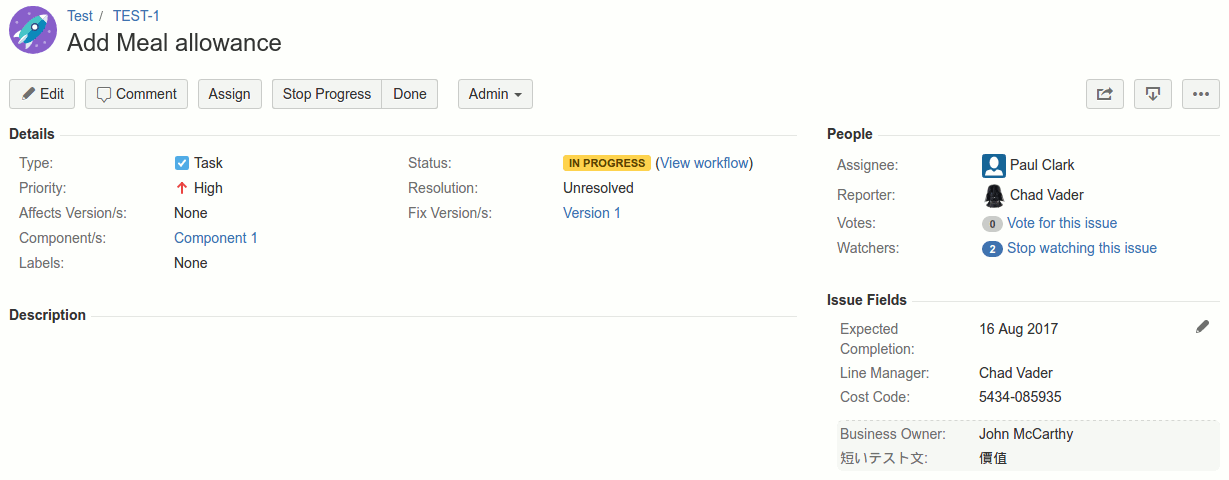
Jira custom fields are extra data fields you add to issues beyond the built-in Summary, Description, Assignee, Priority, and other defaults. They capture information specific to your team or workflow — release dates, cost centres, customer IDs, business owners, compliance flags. Native Jira custom fields are issue-level only and managed by system admins. The Custom Fields app adds project-level fields, per-field security, and validators on top.
How do you create custom fields in Jira?
Fields can be created at two scopes — global (applies to every project) or project-level (applies only to a single project). The creator screen is the same in both cases; only the screen’s location and the required admin permission differ:
- Global Custom Fields — accessed from Admin → System → Add-ons → Custom Fields. Only Jira system admins can see or use this screen. Fields created here apply to every project (for fields marked “Visible In: Project”) and/or every issue (for “Visible In: Issue”).
- Project Custom Fields — accessed from the project’s add-on menu (Cloud) or project menu (Data Center). Only project admins of that project can see or use this screen. Fields created here appear only inside that project.
Everything below applies equally to both screens.
Field attributes
Each field has the following attributes:
- Visible In — whether the field belongs to and is visible on a Project or Issue.
- Field Type — Date, Label, List, Number, Rich Text, String or User. A ”+” on the type means multi-entry; a ”★” means the value is mirrored into a Jira custom field for JQL search.
- Validator — the validator that checks the value.
- Label / Description — what the user sees next to the field.
- Mandatory — required at save.
- Allow multiple entries — multi-select for lists, labels, and user fields.
- Also Show In — for Project fields, optionally show the value on every issue in that project too.
- Use JIRA Custom Field — mirror the value into a standard Jira custom field so it can be queried with JQL and shown in the issue navigator. Available for Date, Label, single-item List, Number, and String.
- Order — display order; fields sort on this first, then by label.
- Visible To — groups that can see the field. Empty = everyone.
- Editable By — groups that can edit (and therefore see) the field. Empty = everyone.
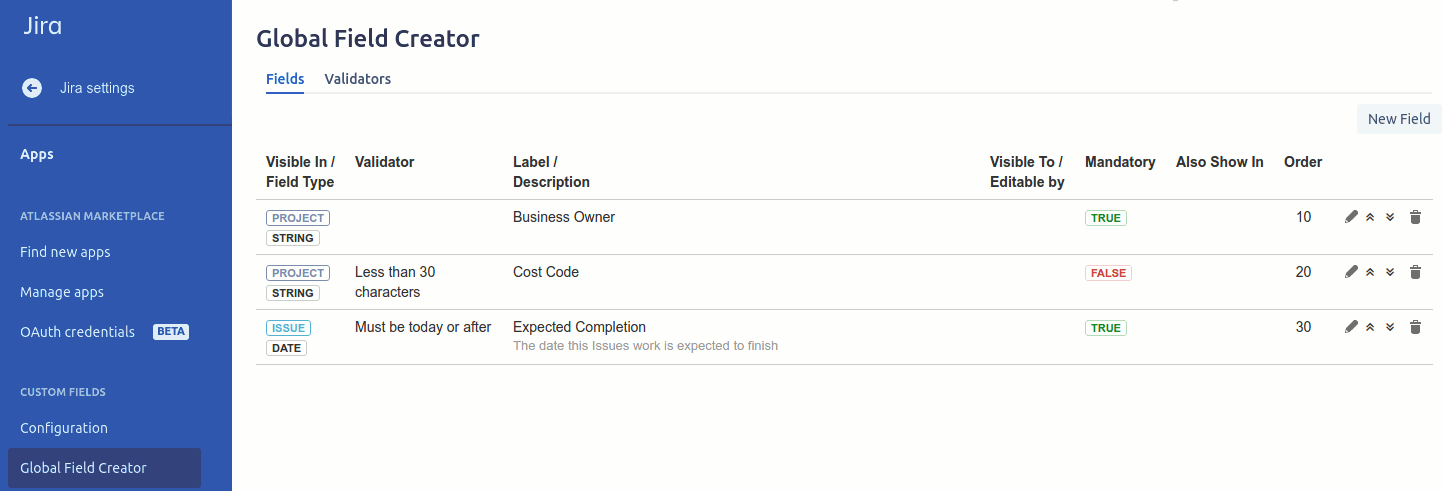
The icons on the right let you edit, reorder, or delete a field. Deleting a field also deletes all its stored values. Reordering swaps order values between adjacent rows.
What custom field types are available?
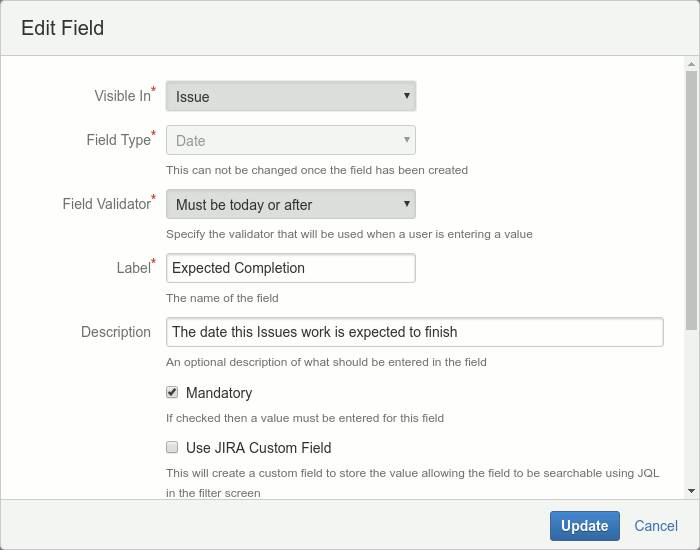
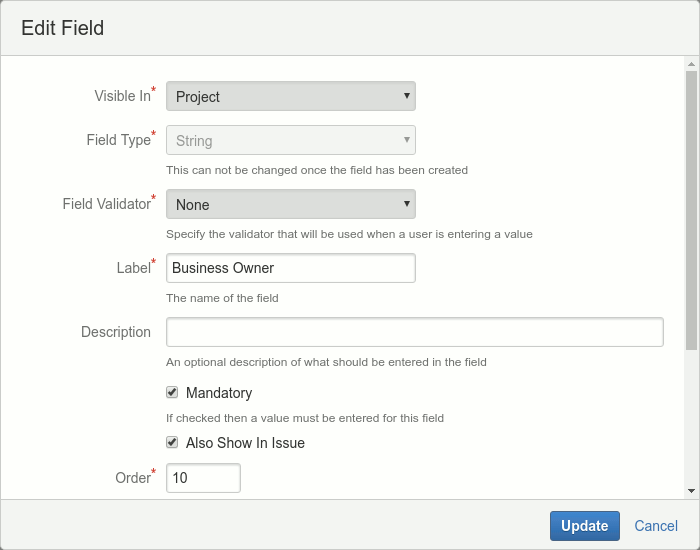
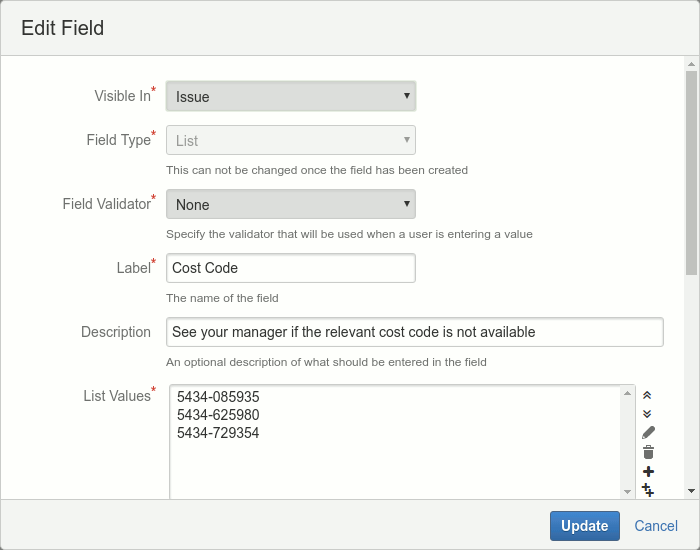
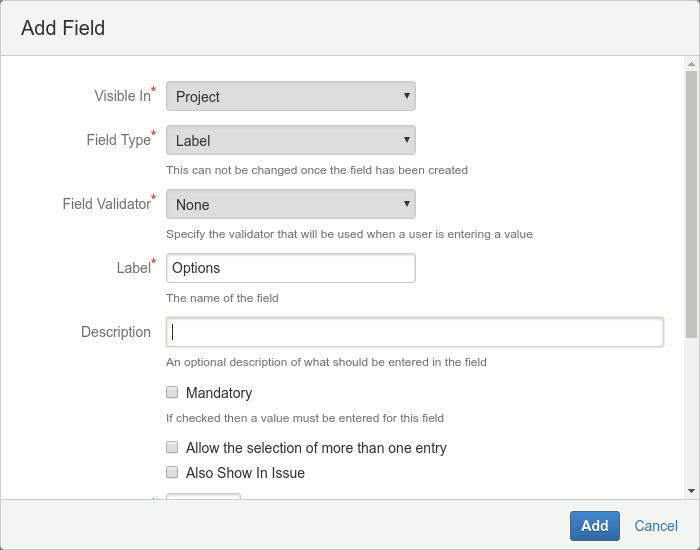
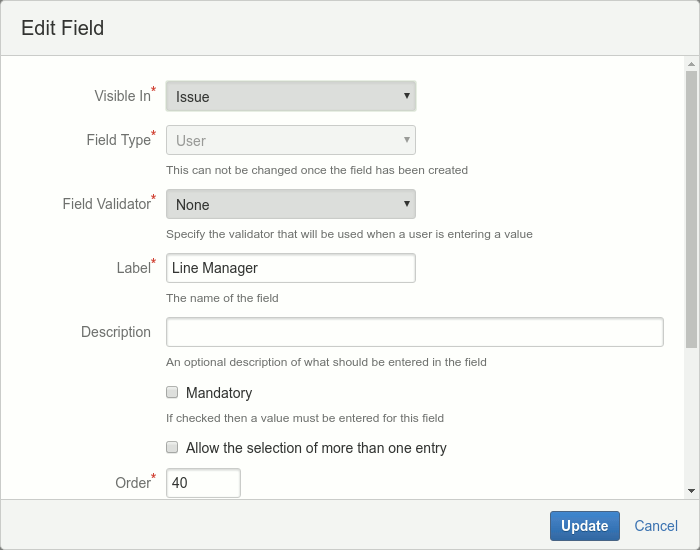
For list types, the entry editor has icon buttons to move items up/down, edit, delete, add a single value, or bulk-add multiple values. Deleting a list value that is in use will blank every field that references it, even if you add the value back later.
List from a Project field selection (cascading lists)
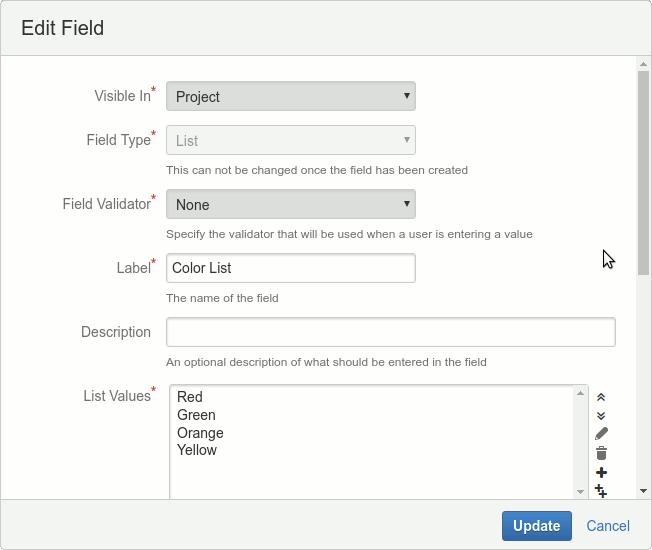
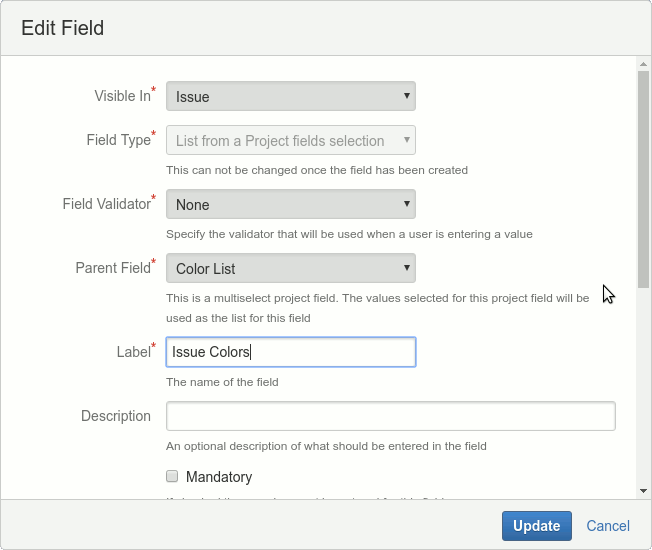
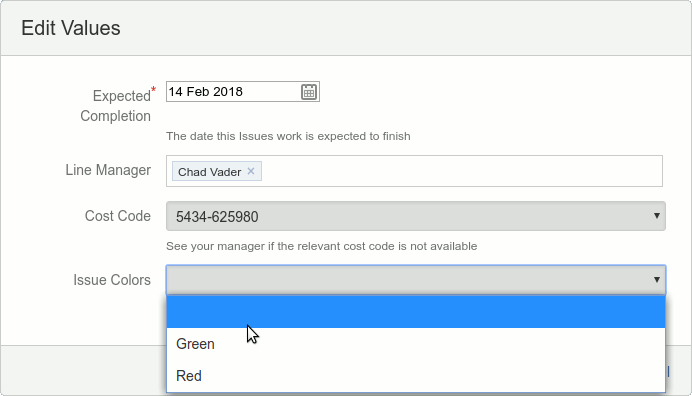
The list-from-project type lets an issue-level list cascade from a project-level list. To use it: define a multi-select list field that is Visible In: Project, then create a second field of type List from a Project field selection that is Visible In: Issue.
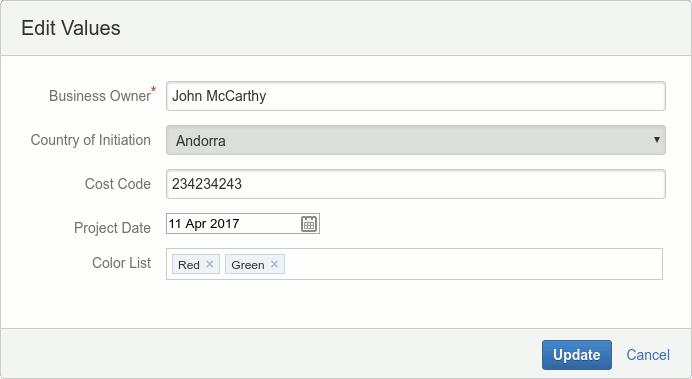
Whatever values are selected for the project become the only options available on the issue. If the project list has Red, Green, Orange, Yellow and you select Red and Green for the project, the issue field will only show Red and Green.
How do you make Jira custom fields searchable with JQL?
Enable the Use JIRA Custom Field option on a Custom Fields field and the value is mirrored into a native Jira custom field. The mirrored value is searchable with JQL and displayable in the issue navigator. Searchable types are Date, single and multiple Label, single-item List, Number, and String. The mirrored Jira custom field is a copy — never edit it directly, only edit the value through the Custom Fields screen.
How do you validate custom field values in Jira?
Validators run on Date, Number, and String fields. Like the field creator, the validator screen is the same for both scopes — global validators are managed by system admins and can be used on global or project fields; project validators are managed by project admins and can only be used on fields inside that project.
Each validator defines:
- Field Type — Date, Number, or String.
- Description — what the validator does.
- Regex — regular expression checked against the value.
- Minimum / Maximum — bounds on the value or its length.
- Enabled — toggle the validator on or off without un-assigning it from any field.
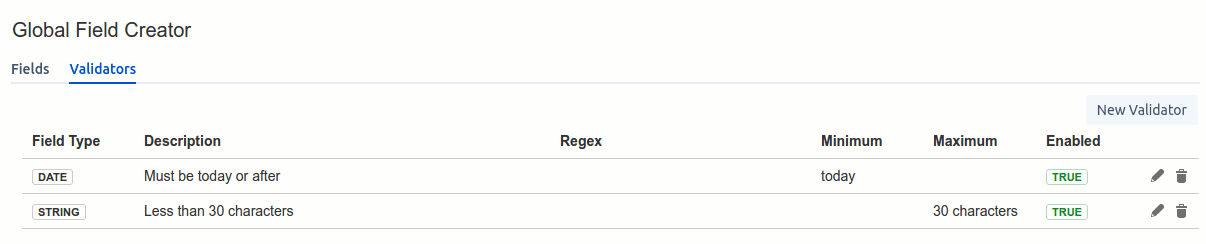
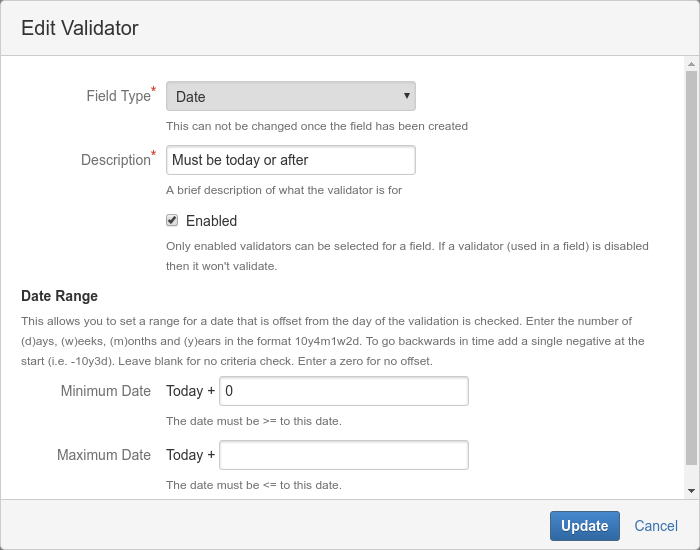
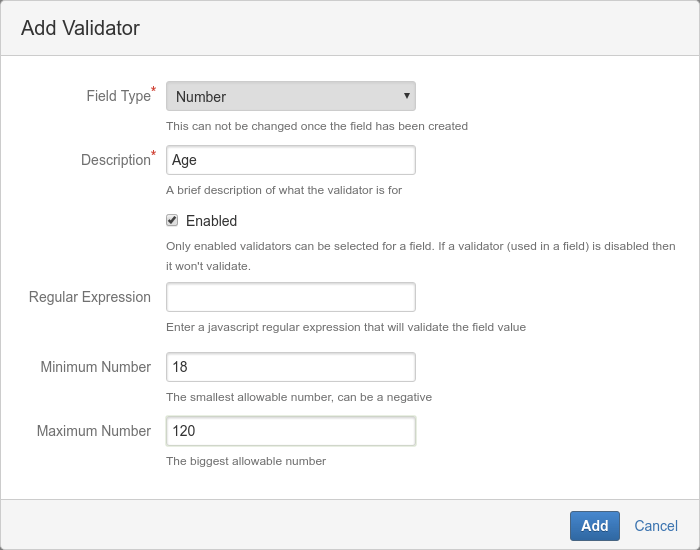
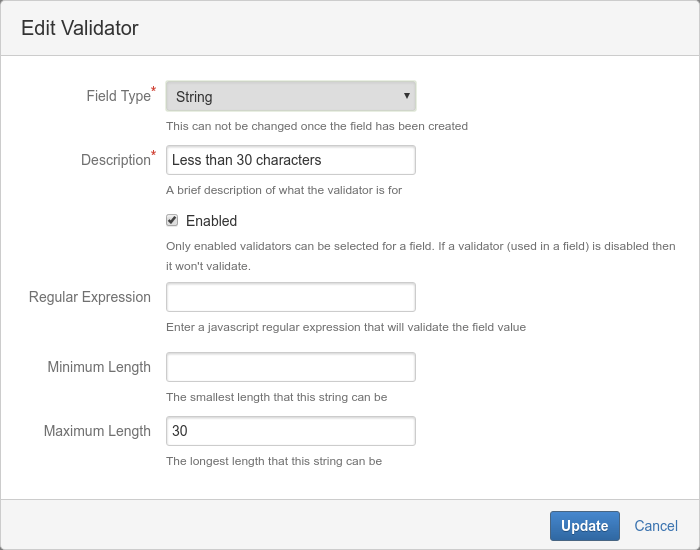
One validator can be re-used on many fields. Disabling a validator temporarily turns off validation everywhere it is used, without removing the validator–field links.
How do you restrict who can see or edit a custom field?
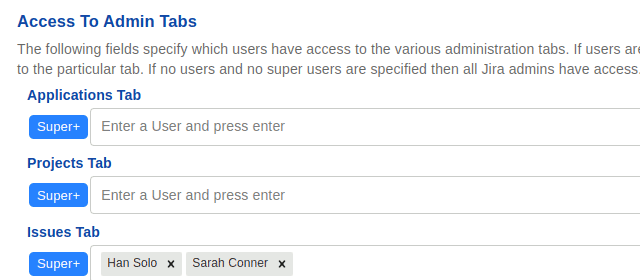
Every field has two group lists: Visible To controls who can see the value, Editable By controls who can also edit it. Users in either group see the field; only users in Editable By can change it. If both lists are empty the field is visible and editable to everyone. This is how Custom Fields acts as a security boundary for sensitive data — cost codes, compliance flags, HR information.
How do field values display on Jira projects and issues?
Project fields screen
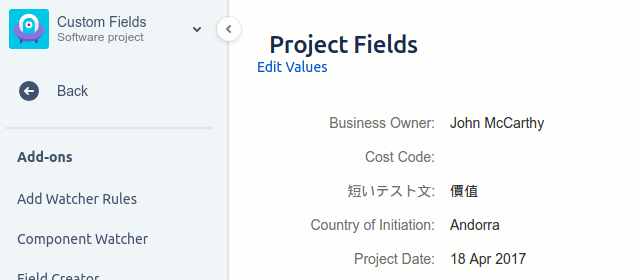
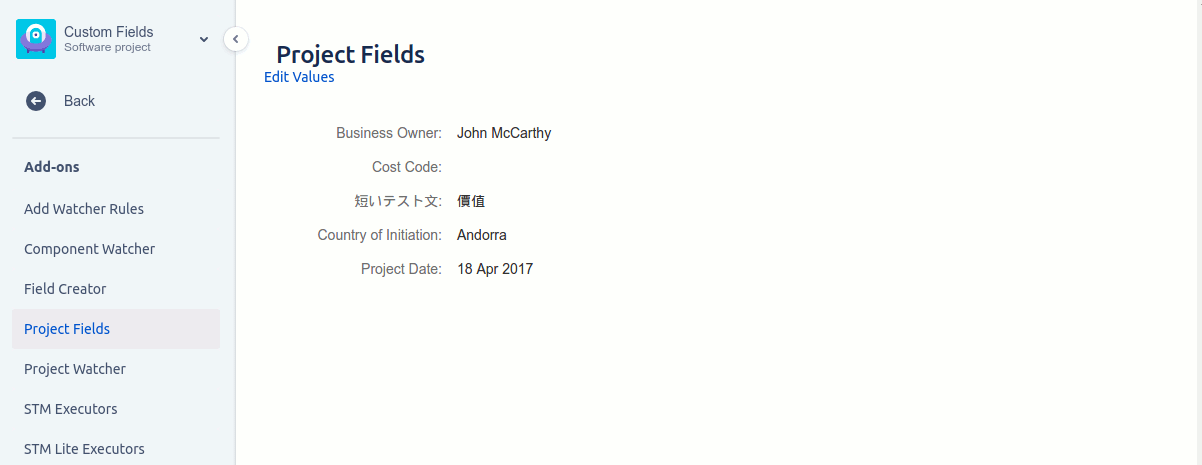
Fields with Visible In: Project appear on the project’s Custom Fields screen. Values set here belong to the project, not to any individual issue.
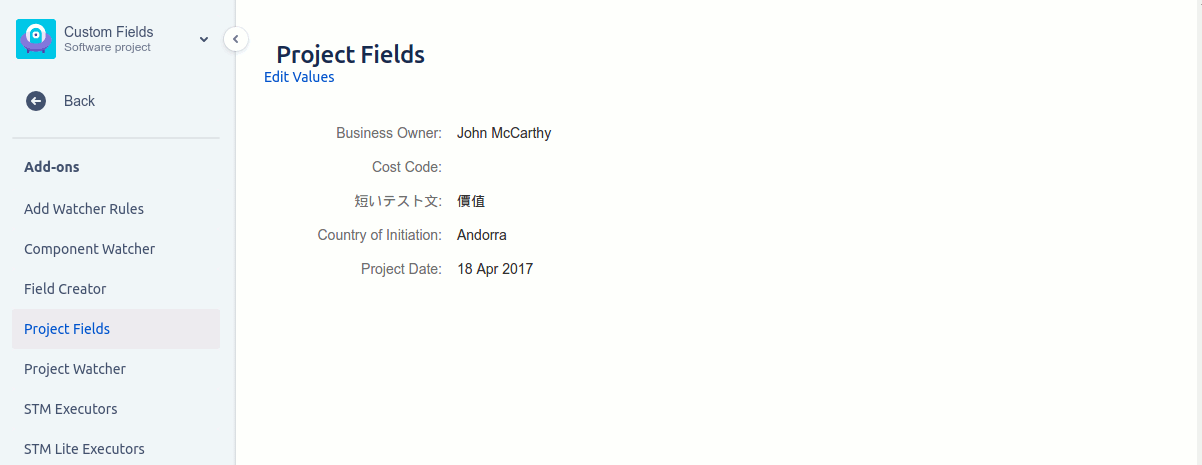
Mandatory fields with no value show Value Required in red. Click Edit Values to open the values dialog for the whole project.
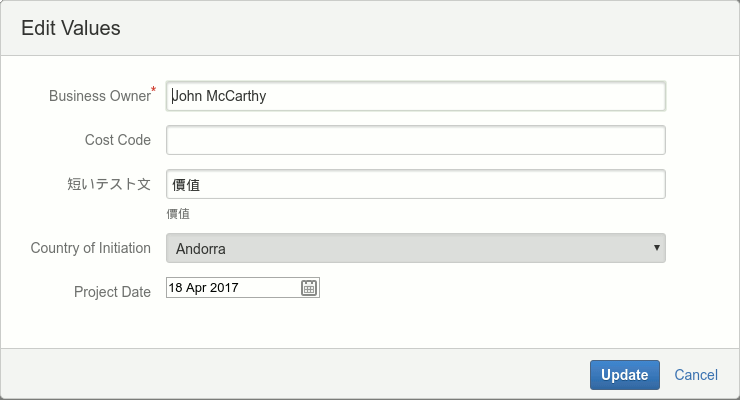
All mandatory fields must be filled before the dialog will save. Only project admins can edit project field values; everyone with project access can view them.
Issue fields display
Issues display two groups of Custom Fields, in this order:
- Fields with Visible In: Issue — issue-level fields, ordered by field-order then label.
- Fields with Visible In: Project that also have Also show in Issue set — shown below the issue fields in a shaded box.
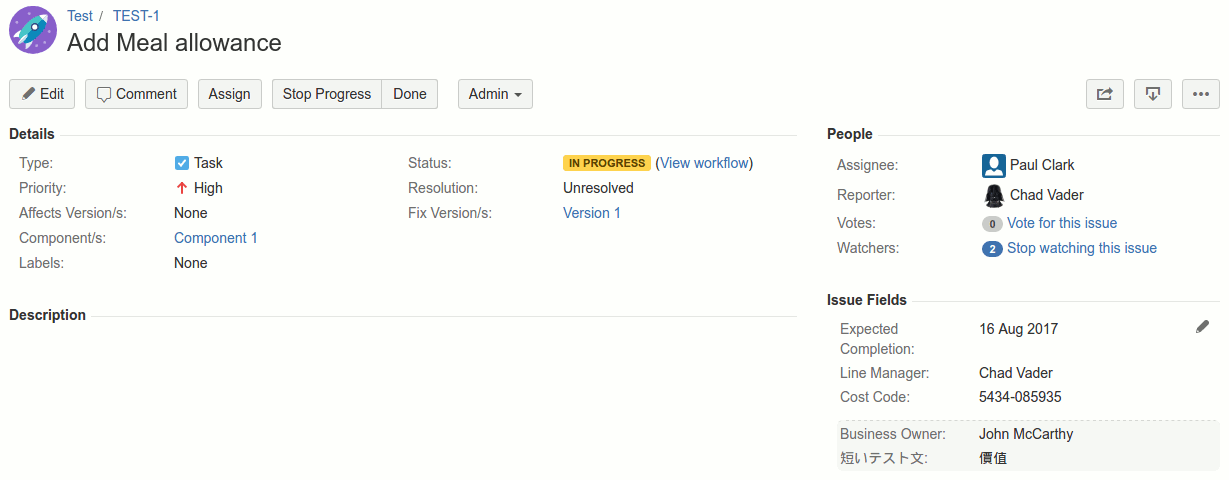
Mandatory fields with no value show Value Required in red. Click the pencil icon to edit issue-level values; project fields can only be edited from the project screen.
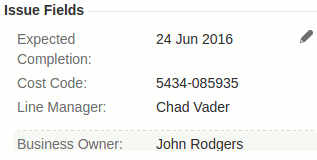
Any Jira user with Edit Issue permission can change issue field values. Anyone who can see the issue can view the field values (subject to per-field Visible To restrictions).
How do you search across custom field values?
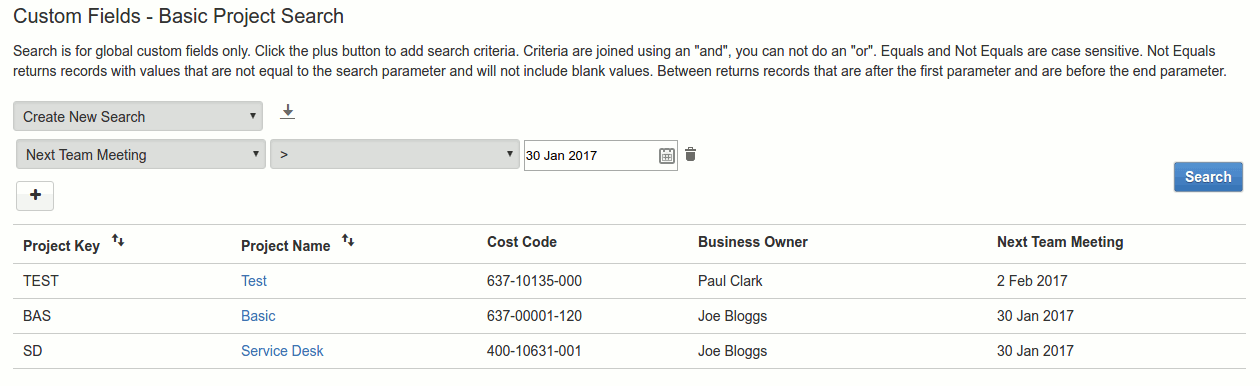
The Basic Project Search screen lets you query values across all global project fields (project-level and issue fields are not searchable here — for those, use JQL via the Use JIRA Custom Field option).
Access
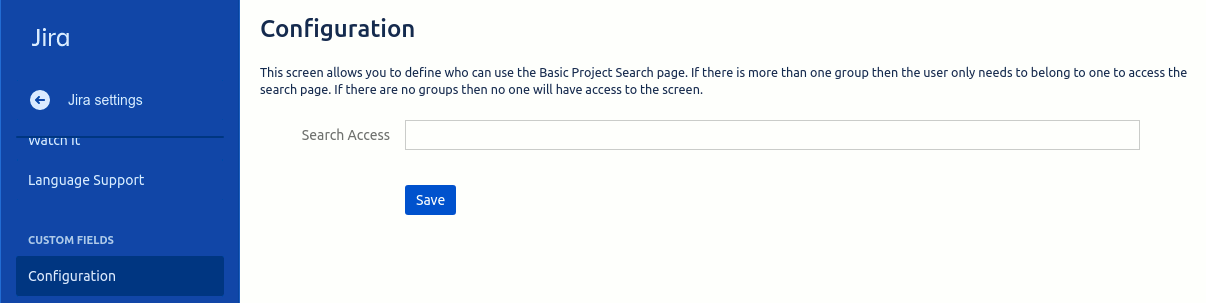
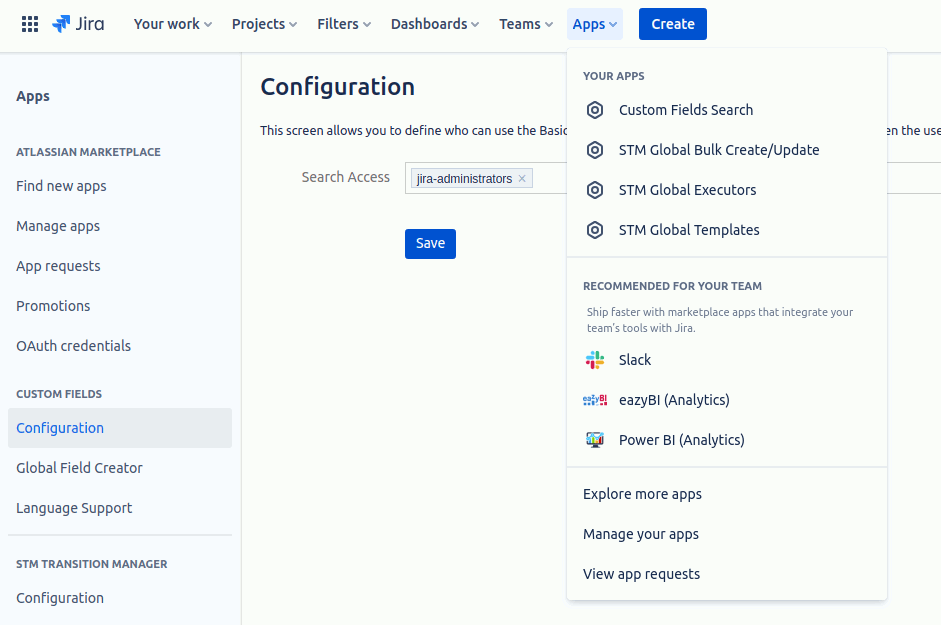
Search access is controlled by user groups. Go to Admin → Add-ons → Configuration (under Custom Fields) and add one or more groups. Users in any of those groups will see Custom Fields in the left-hand Apps menu, with Basic Project Search inside it.
Running a search

A search consists of one or more criteria rows, each picking a field, an operator (=, <, >, …) and a value. Multiple rows are combined with AND. There is no OR.
Saving a search
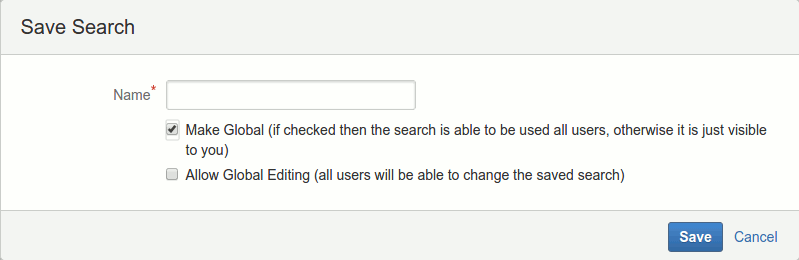
Give the search a name. Make Global shares the saved search with everyone who has access to Basic Project Search; otherwise only you see it. If Make Global is on, Allow Global Editing appears — if on, other users can edit and resave the search.
What languages does Custom Fields support?
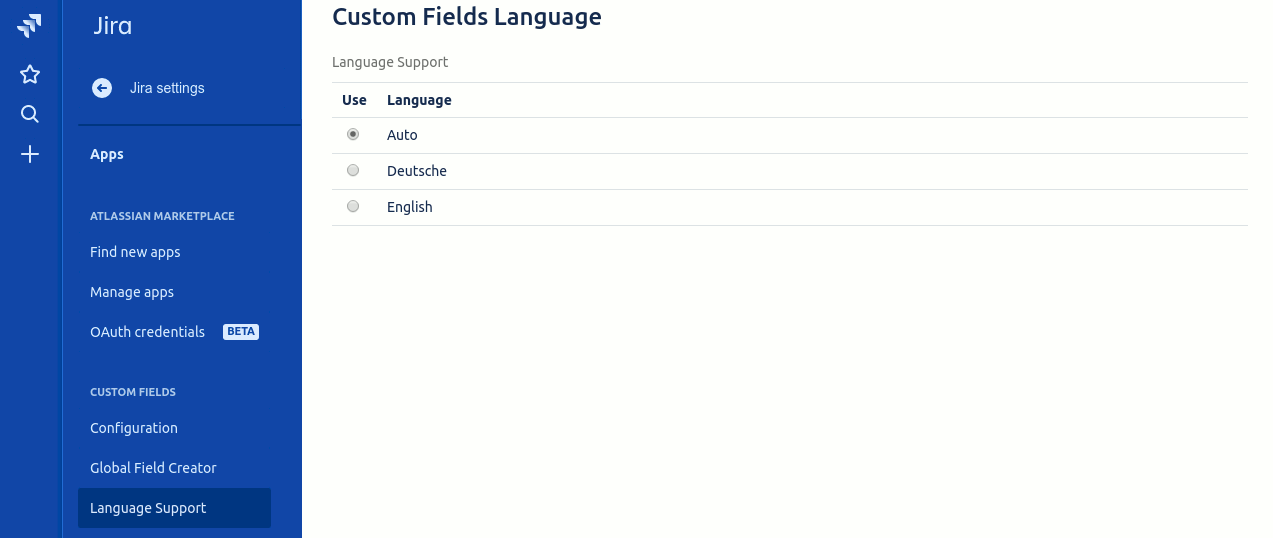
Custom Fields ships with English and German built in, and supports a Language Support setting that lets you pick a language manually or auto-detect from the Jira user’s locale. Translations apply to field labels, descriptions, and dialog text — they do not apply to menu, tab, or panel heading text (those are set by Jira itself).
REST API
The following REST endpoints let external systems read and update Custom Fields data.
All API calls require a token parameter — a unique customer key available on the Custom Fields global configuration page.
getFieldsForProject
Retrieve all fields for a specific project key. Pass projectKey=Global to get globally defined fields.
Method: GET
URL: https://redmoon-custom-fields.appspot.com/_ah/api/customfield/v1/getFieldsForProject
Parameters:
token– your unique customer token (required)projectKey– key of the project (required)
Example request:
GET /getFieldsForProject?token=abc123&projectKey=RAEExample response:
{
  "items": [
    {
      "visibleIn": "project",
      "allowMultipleEntries": false,
      "parentProjectFieldId": "0",
      "description": "",
      "label": "Business Owner",
      "mandatory": false,
      "alsoShowInIssue": false,
      "projectKey": "RAE",
      "id": "250870003",
      "projectId": "10192",
      "fieldType": "string",
      "order": "10"
    },
    {
      "visibleIn": "project",
      "allowMultipleEntries": false,
      "parentProjectFieldId": "0",
      "description": "",
      "label": "Proj Global Field",
      "mandatory": false,
      "alsoShowInIssue": false,
      "projectKey": "RAE",
      "id": "264960003",
      "projectId": "-1",
      "fieldType": "string",
      "order": "20"
    },
    {
      "visibleIn": "project",
      "allowMultipleEntries": false,
      "parentProjectFieldId": "0",
      "description": "",
      "label": "Global User",
      "mandatory": false,
      "alsoShowInIssue": false,
      "projectKey": "RAE",
      "id": "250940003",
      "projectId": "-1",
      "fieldType": "user",
      "order": "30"
    }
  ]
}
getFieldsForIssue
Retrieve all fields for a specific issue key.
Method: GET
URL: https://redmoon-custom-fields.appspot.com/_ah/api/customfield/v1/getFieldsForIssue
Parameters:
token– your unique customer token (required)issueKey– issue key (e.g.RAE-1) (required)
Example request:
GET /getFieldsForIssue?token=abc123&issueKey=RAE-1Example response:
{
  "items": [
    {
      "visibleIn": "issue",
      "allowMultipleEntries": false,
      "issueKey": "RAE-1",
      "parentProjectFieldId": "0",
      "description": "",
      "label": "Project Manager",
      "mandatory": false,
      "listValues": {
        "counter": 4.0,
        "list": [
          { "id": 2.0, "text": "David" },
          { "id": 3.0, "text": "Jolene" },
          { "id": 3.0, "text": "Freddie" }
        ]
      },
      "alsoShowInIssue": false,
      "id": "253090005",
      "projectId": "-1",
      "fieldType": "list",
      "order": "10"
    },
    {
      "visibleIn": "issue",
      "allowMultipleEntries": false,
      "issueKey": "RAE-1",
      "parentProjectFieldId": "0",
      "description": "",
      "label": "Employee",
      "mandatory": false,
      "alsoShowInIssue": false,
      "id": "255250004",
      "projectId": "10192",
      "fieldType": "string",
      "order": "30"
    },
    {
      "visibleIn": "issue",
      "allowMultipleEntries": false,
      "issueKey": "RAE-1",
      "parentProjectFieldId": "0",
      "description": "The charge for the billable work",
      "label": "Cost Codes",
      "mandatory": false,
      "listValues": {
        "counter": 6.0,
        "list": [
          { "id": 1.0, "text": "010-007-019" },
          { "id": 2.0, "text": "010-007-020" },
          { "id": 3.0, "text": "010-008-331" },
          { "id": 4.0, "text": "011-001-090" },
          { "id": "5.0", "text": "011-001-102" }
        ]
      },
      "alsoShowInIssue": false,
      "id": "250910003",
      "projectId": "10192",
      "fieldType": "list",
      "order": "40"
    }
  ]
}
getField
Get full details of a custom field by its field ID.
Method: GET
URL: https://redmoon-custom-fields.appspot.com/_ah/api/customfield/v1/getField
Parameters:
token– your unique customer token (required)fieldId– ID of the field (required)
Example request:
GET /getField?token=abc123&fieldId=250910003Example response:
{
  "visibleIn": "issue",
  "allowMultipleEntries": false,
  "parentProjectFieldId": "0",
  "description": "The charge for the billable work",
  "label": "Cost Codes",
  "mandatory": false,
  "listValues": {
    "counter": 6.0,
    "list": [
      { "id": 1.0, "text": "010-007-019" },
      { "id": 2.0, "text": "010-007-020" },
      { "id": 3.0, "text": "010-008-331" },
      { "id": 4.0, "text": "011-001-090" },
      { "id": "5.0", "text": "011-001-102" }
    ]
  },
  "alsoShowInIssue": false,
  "projectKey": "RAE",
  "id": "250910003",
  "projectId": "10192",
  "fieldType": "list",
  "order": "40"
}
getFieldAndProjectValue
Retrieve a field’s definition and its value for a specific project key.
Method: GET
URL: https://redmoon-custom-fields.appspot.com/_ah/api/customfield/v1/getFieldAndProjectValue
Parameters:
token– your unique customer token (required)fieldId– ID of the field (required)projectKey– key of the project (required)
Example request:
GET /getFieldAndProjectValue?token=abc123&fieldId=250870003&projectKey=RAEExample response:
{
  "visibleIn": "project",
  "allowMultipleEntries": false,
  "parentProjectFieldId": "0",
  "description": "",
  "label": "Business Owner",
  "mandatory": false,
  "alsoShowInIssue": false,
  "projectKey": "RAE",
  "id": "250870003",
  "projectId": "10192",
  "fieldType": "string",
  "value": "Owner Value",
  "order": "10"
}
getFieldAndIssueValue
Retrieve a field’s definition and its value for a specific issue key.
Method: GET
URL: https://redmoon-custom-fields.appspot.com/_ah/api/customfield/v1/getFieldAndIssueValue
Parameters:
token– your unique customer token (required)fieldId– ID of the field (required)issueKey– key of the issue (required)
Example request:
GET /getFieldAndIssueValue?token=abc123&fieldId=250910003&issueKey=RAE-1Example response:
{
  "visibleIn": "issue",
  "allowMultipleEntries": false,
  "issueKey": "RAE-1",
  "parentProjectFieldId": "0",
  "description": "The charge for the billable work",
  "label": "Cost Codes",
  "mandatory": false,
  "listValues": {
    "counter": 6.0,
    "list": [
      { "id": 1.0, "text": "010-007-019" },
      { "id": 2.0, "text": "010-007-020" },
      { "id": 3.0, "text": "010-008-331" },
      { "id": 4.0, "text": "011-001-090" },
      { "id": "5.0", "text": "011-001-102" }
    ]
  },
  "alsoShowInIssue": false,
  "id": "250910003",
  "projectId": "10192",
  "fieldType": "list",
  "order": "40"
}
getFieldValuesForProject
Get all field values for a given project.
Method: GET
URL: https://redmoon-custom-fields.appspot.com/_ah/api/customfield/v1/getFieldValuesForProject
Parameters:
token– your unique customer token (required)projectKey– key of the project (required)
Example request:
GET /getFieldValuesForProject?token=abc123&projectKey=RAEExample response:
{
  "items": [
    {
      "visibleIn": "project",
      "allowMultipleEntries": false,
      "parentProjectFieldId": "0",
      "description": "",
      "label": "Business Owner",
      "mandatory": false,
      "alsoShowInIssue": false,
      "projectKey": "RAE",
      "id": "250870003",
      "projectId": "10192",
      "fieldType": "string",
      "value": "Owner Value",
      "order": "10"
    },
    {
      "visibleIn": "project",
      "allowMultipleEntries": false,
      "parentProjectFieldId": "0",
      "description": "",
      "label": "Proj Global Field",
      "mandatory": false,
      "alsoShowInIssue": false,
      "projectKey": "RAE",
      "id": "264960003",
      "projectId": "-1",
      "fieldType": "string",
      "value": "Wibble",
      "order": "20"
    },
    {
      "visibleIn": "project",
      "allowMultipleEntries": false,
      "parentProjectFieldId": "0",
      "description": "",
      "label": "Global User",
      "mandatory": false,
      "alsoShowInIssue": false,
      "projectKey": "RAE",
      "id": "250940003",
      "projectId": "-1",
      "fieldType": "user",
      "value": "557058:20c30253-620a-466f-b04f-1fc38afa6264",
      "order": "30"
    }
  ]
}
getFieldValuesForIssue
Get all field values for a given issue.
Method: GET
URL: https://redmoon-custom-fields.appspot.com/_ah/api/customfield/v1/getFieldValuesForIssue
Parameters:
token– your unique customer token (required)issueKey– key of the issue (required)
Example request:
GET /getFieldValuesForIssue?token=abc123&issueKey=RAE-1Example response:
{
  "items": [
    {
      "visibleIn": "issue",
      "allowMultipleEntries": false,
      "issueKey": "RAE-1",
      "parentProjectFieldId": "0",
      "description": "",
      "label": "Project Manager",
      "mandatory": false,
      "listValues": {
        "counter": 4.0,
        "list": [
          { "id": 2.0, "text": "David" },
          { "id": 3.0, "text": "Jolene" },
          { "id": 3.0, "text": "Freddie" }
        ]
      },
      "alsoShowInIssue": false,
      "id": "253090005",
      "projectId": "-1",
      "fieldType": "list",
      "value": ["2"],
      "order": "10"
    },
    {
      "visibleIn": "issue",
      "allowMultipleEntries": false,
      "issueKey": "RAE-1",
      "parentProjectFieldId": "0",
      "description": "",
      "label": "Employee",
      "mandatory": false,
      "alsoShowInIssue": false,
      "id": "255250004",
      "projectId": "10192",
      "fieldType": "string",
      "value": "Timothy",
      "order": "30"
    },
    {
      "visibleIn": "issue",
      "allowMultipleEntries": false,
      "issueKey": "RAE-1",
      "parentProjectFieldId": "0",
      "description": "The charge for the billable work",
      "label": "Cost Codes",
      "mandatory": false,
      "listValues": {
        "counter": 6.0,
        "list": [
          { "id": 1.0, "text": "010-007-019" },
          { "id": 2.0, "text": "010-007-020" },
          { "id": 3.0, "text": "010-008-331" },
          { "id": 4.0, "text": "011-001-090" },
          { "id": "5.0", "text": "011-001-102" }
        ]
      },
      "alsoShowInIssue": false,
      "id": "250910003",
      "projectId": "10192",
      "fieldType": "list",
      "order": "40"
    }
  ]
}
addSelectListOption
Add a new option to a select-list field.
Method: PUT
URL: https://redmoon-custom-fields.appspot.com/_ah/api/customfield/v1/addSelectListOption
Parameters:
token– your unique customer token (required)projectKey– key of the project (required)fieldId– ID of the field (required)optionName– name of the new option to add (required)
Example request:
PUT /addSelectListOption?token=abc123&projectKey=RAE&fieldId=250910003&optionName=011-001-102Example response:
{
  "field": {
    "visibleIn": "issue",
    "allowMultipleEntries": false,
    "parentProjectFieldId": "0",
    "description": "The charge for the billable work",
    "label": "Cost Codes",
    "mandatory": false,
    "listValues": {
      "counter": 6.0,
      "list": [
        { "id": 1.0, "text": "010-007-019" },
        { "id": 2.0, "text": "010-007-020" },
        { "id": 3.0, "text": "010-008-331" },
        { "id": 4.0, "text": "011-001-090" },
        { "id": "5.0", "text": "011-001-102" }
      ]
    },
    "alsoShowInIssue": false,
    "projectKey": "RAE",
    "id": "250910003",
    "projectId": "10192",
    "fieldType": "list",
    "order": "40"
  },
  "optionId": "5.0"
}