








Migration from Data Center to Cloud
Hide your attachments. Document Vault offers a secure attachment repository that can be hidden from all but a select user group.
This page explains the process of migrating your Document Vault data from Data Center to Cloud Jira.
Pre-requisites
You must at least have Document Vault for Data Center 8.0.2 and the latest Document Vault for Jira Cloud installed
Migration Process Overview
- Install (and configure) Document Vault for Jira on your cloud instance.
- Install Jira Cloud Migration Assistant on the Data Center instance from which you intend to migrate the Document Vault for Jira data.
- Go to the admin configuration page for Document Vault. Setup a storage project, a storage user and save. This project will be used to store all Document Vault attachments and is an mandatory part of the migration
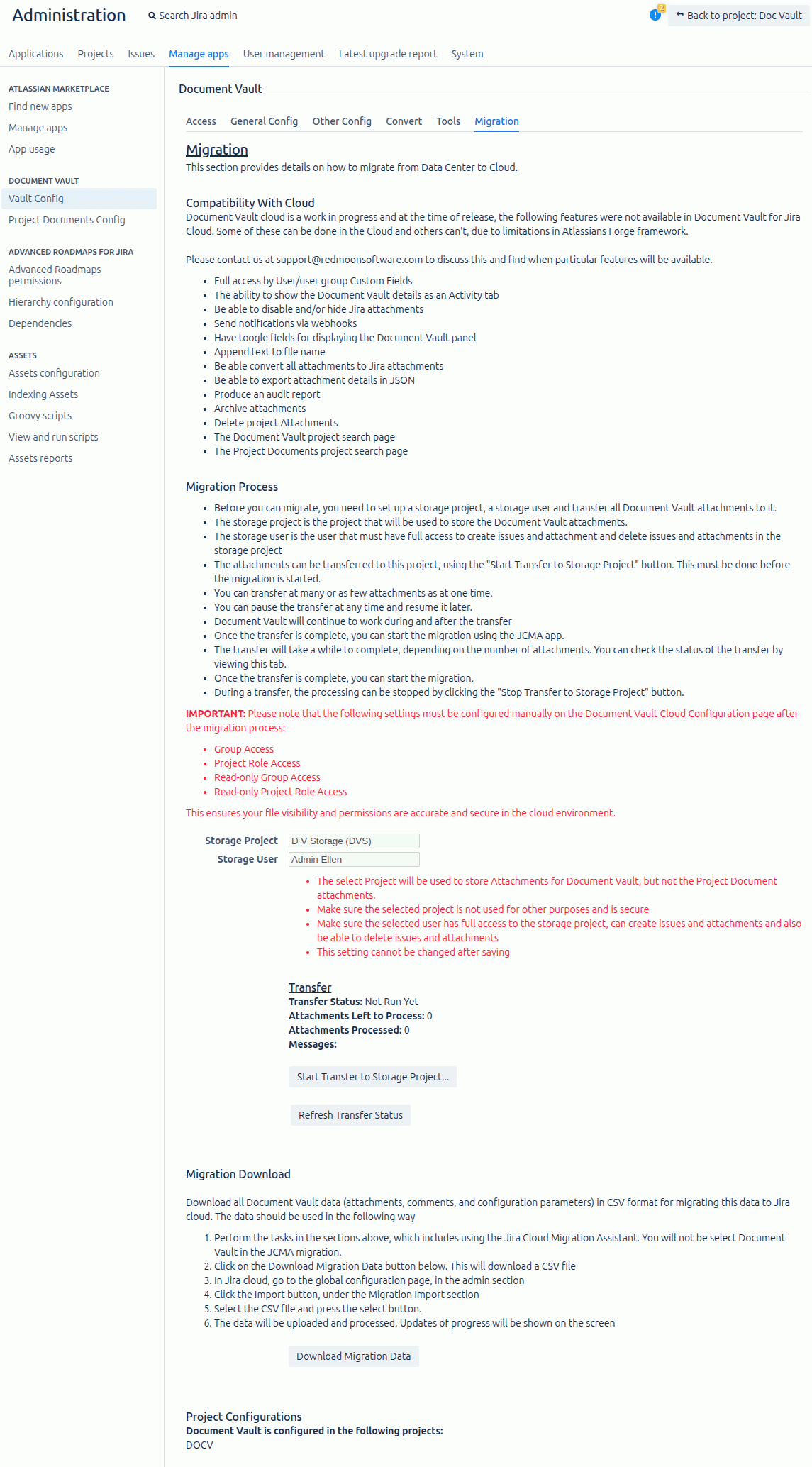
- You need to have created a storage project and transferred all attachments to this storage project. This can be found on the admin configuration page under the Migration tab
- Using the appropriate button, transfer all attachments to the storage project. Attachments not in this storage project will not be transferred to Jira cloud
- Go to the Bottom part of the tab and read the instructions for the Migration Download.
- Click on the Download Migration Data button. This will produce a file with the data about all of your Document Vault attachments and comments.
- The migration does not copy across the global and project configurations. You will need to do this yourself. Under the Project Configurations heading there is a list of all projects with their own configuration. This will be done in the next section
Migration
- Install Document Vault into Jira cloud or, if it is already installed, then make sure you are on the latest version
- Use JCMA to migrate all your Jira data across to the cloud. This will include the storage project you specified above. Our migration process is outside of JCMA
- Go into the Document Vault tab.
- Configure the Storage Project and enter the global and project configurations
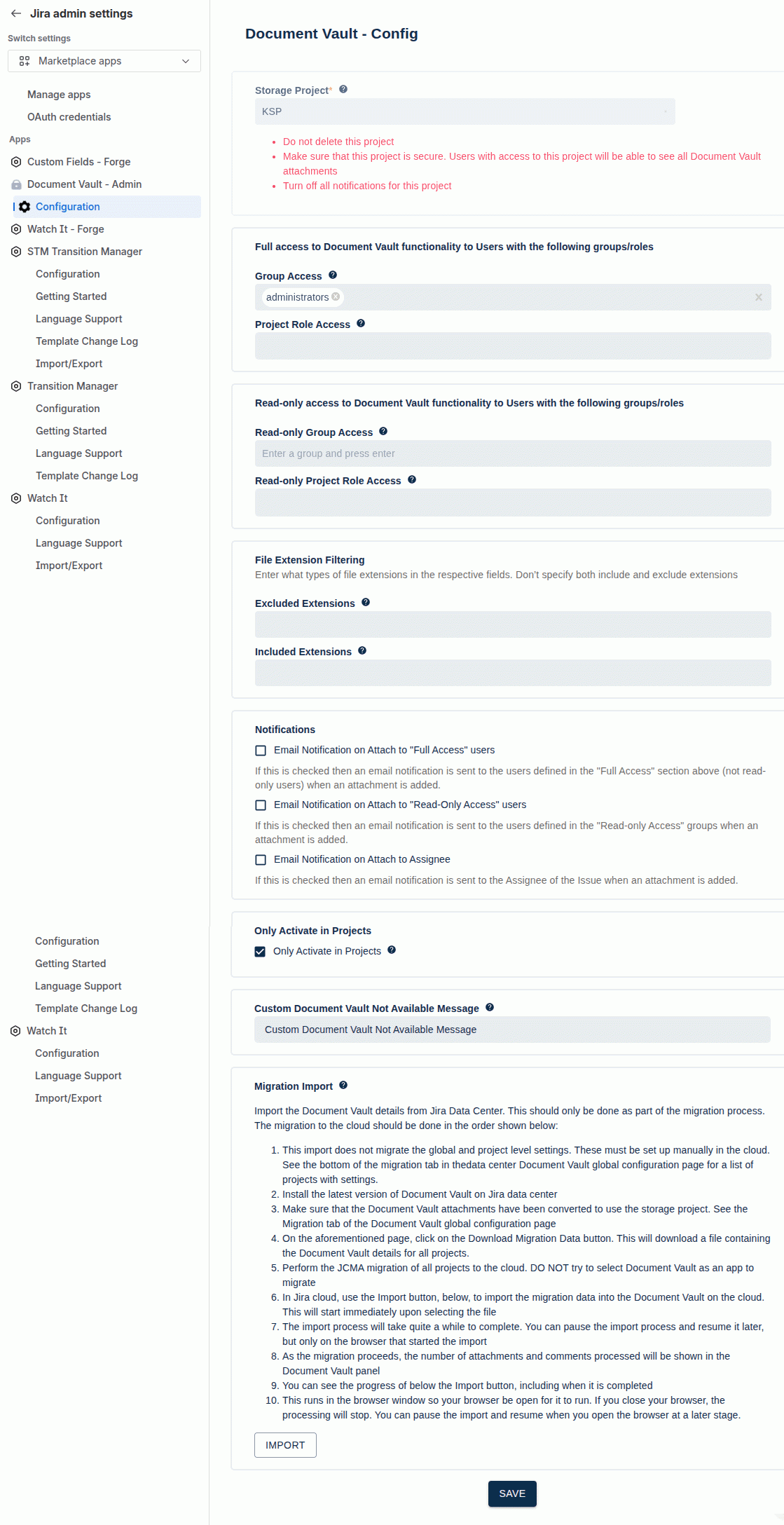
- Read the instructions on the page.
- Click Import and select the file that you downloaded from Jira data center
- The data will be imported into Jira cloud and the progress shown below the Import button
- You can pause the process and resume at a later stage
- This import runs in the browser window so your browser must be open for it to run. If you close your browser, the processing will be paused. You can also click on the pause button and use the resume button at a later stage. Just closing the browser will mean the import will need to start again, so please use the pause and resume instead
- When the import is complete, the Document Vault panels will display the attachments and comments.
- The attachments and comments will appear as the data is processed.
Differences between Data Center and Cloud Versions
The following features are not available in the cloud version of Document Vault:
- Full access by User/user group Custom Fields
- The ability to show the Document Vault details as an Activity tab
- Be able to disable and/or hide Jira attachments (Can’t be done on Jira cloud)
- Send notifications via webhooks
- Have toogle fields for displaying the Document Vault panel
- Append text to file name
- Be able to convert all attachments to Jira attachments
- Be able to export attachment details in JSON
- Produce an audit report
- Archive attachments (Can’t be done on Jira cloud)
- Project Attachments
- The Document Vault project search page
- The Project Documents project search page