








Features
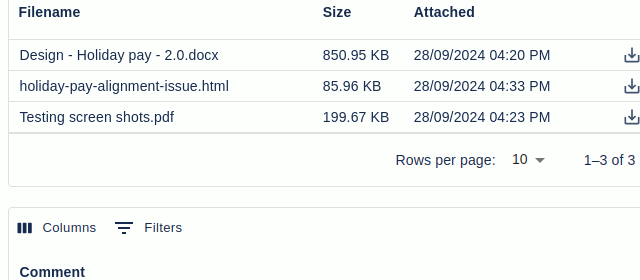
Hide your attachments. Document Vault offers a secure attachment repository that can be hidden from all but a select user group.
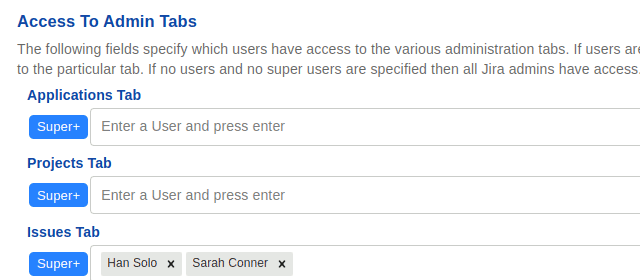
Access To Document Vault
Files are only shown to those configured in the configuration page. Currently full access to Document Vault functionality can be given to the following users:
- Those in particular user groups
- Those with particular project roles
- Those in a specified single user or multi-user custom fields
- Those in a specified user group or multi-user group custom fields
- The Reporter for an Issue
- The Assignee for an Issue
- The Creator for an Issue
Read-only Access can be given to the following users:
- Those in particular user groups
- Those with particular project roles
These settings can be found on the Access tab of the admin configuration page
Document Vault location in Issues
The Document Vault files can be shown on the left hand side where Jira attachments are normally shown or as a activity tab
This is specified under the “Document Vault Position in the Issue Screen” heading in the General Config tab of the admin configuration page
Disabling Jira Attachments
By default Jira attachments are shown when using Document Vault. There are two additional options that allow you to disable Jira attachments.
- Disable Jira attachments but still show them in Jira. This stops any new Jira attachments being added but still shows all the existing attachments.
- Disable Jira attachments and show existing attachments in Document Vault. This stops any new Jira attachments from being added and ONLY shows all existing Jira attachments in the Document Vault panel. Users can only see those Jira attachments if they have access to Document Vault
These settings can be found on the General Config tab of the admin configuration page under the heading Attachments
File Extension Filtering
You can exclude or include particular file extensions (you can’t do both).To exclude/include file extensions you can add a comma separated list of extensions (without the fullstop).
The option can be found under the File Extensions Filtering heading on the General Config page of the admin Configuration page.
Only activate on particular projects
Under the Only Activate In Projects heading of the admin Configuration pages General Config tab there is an option to activate Document Vault in Projects. Once this is checked, Document Vault will only be shown in Projects where it has been activated in the Document Vault tab of the Projects settings.
Noitifcation When Files Attached
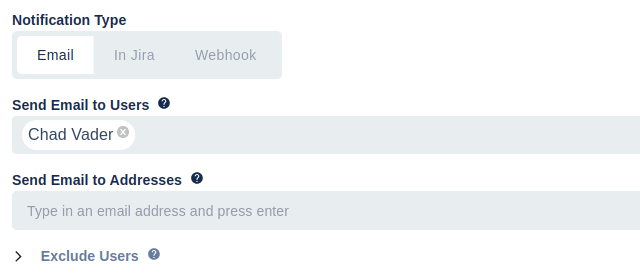
Notifications, on attaching files, can be sent to the users in the groups specified for full or read-only access. Notifications can also be sent to the assignee
These settings can be found on the General Config tab of the admin configuration page under the heading Notifications
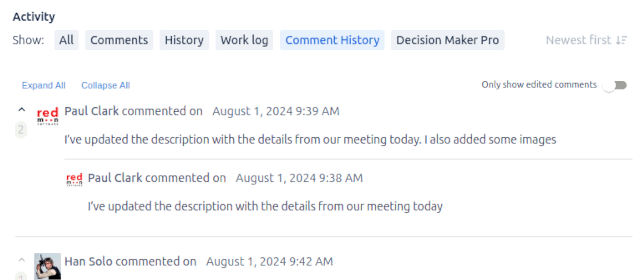
Standalone Comments
While you can add comments with attachments you can also have standalone comments which are not related to an attachment at all. These have the same level of security as Document Vault attachments.
This can be found on the General Config tab of the admin configuration page under the heading Standalone Comments
Webhook
You can have details of an attachment or standalone comment sent to a webhook. This is done my specifying a URL for the webhook on the Other Config tab in the Document Vault admin configuration page.
Toggle Display
This allows you to use a custom toggle field to indicate whether or not the Document Vault page is shown.
These settings can be found on the Other Config tab of the admin configuration page under the heading Toggle Display
Append Details to the Filename on Upload
You can append the following details to a filename when the file is uploaded:
- Parts or all of the date
- Parts or all of the time
- The issue key
- The project key
- Any static text
These settings can be found on the Other Config tab of the admin configuration page under the heading Append To Name
Show a No Access Panel
You can optionally show a custom message to users that do not have access to Document Vault.
Convert Document Vault attachments to Jira Attachments
If you decide to no longer use Document Vault then you can convert all Document Vault attachments to Jira attachments.
This feature can be found under the Convert tab of the global configuration page
Export detais of the Document Vault attachments
You can export the details (not actual attachment) of the Document Vault attachments for a particular project as a JSON file.
This feature can be found under the Tools tab of the global configuration page
Get 30 day audit report of access to Document Vault files
Download a report showing who has had access to Document Vault files. The report is for a period of 30 days.
This feature can be found under the Tools tab of the global configuration page
Archive Document Vault Attachments for a Project
Create an archive copy of a projects Document Vault files. This will produce a copy of the attachments into another directory that you can move to another location without affecting Document Vault
This feature can be found under the Tools tab of the global configuration page
Delete all Document Vault attachments for a Project
This allows you to specify a projects whose Document Vault files will all be deleted.
This feature can be found under the Tools tab of the global configuration page
Store files for a Project
This option allows you to store files against a project and optionally show particular files in every Issue of the project.
These files can also be versioned so that you can view old versions of the file, before it was updated
The Project Documents page can be found in the Projects page and this can be configured in “Project Documents Config” under the Manage Apps admin section.
No matches. Try different search terms.